



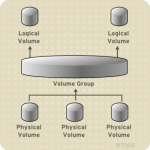
Your server needs more space eh? Throw another physical drive in there and let’s use that to increase the logical volume that needs more space! In this example, we are going to use a Citrix XenServer VPS running CentOS. We are going to increase the logical volume from 250gb to 300gb.
First, add the new storage to the machine. We used XenCenter to add a ‘virtual disk’ to the VPS. This step for you might be adding a new physical drive to the hardware machine. Either way, this step is the one where we put the new/blank storage somewhere so our Linux machine can see it…
Next, let’s see if the system can see the new storage:
|
1 2 |
[root@server ~]# fdisk -l Disk /dev/xvdb doesn't contain a valid partition table |
Note: you’ll also see information about your current drives..
This tells us that Linux sees the storage but there is no partition table on it yet. let’s create a partition on the drive using fdisk, parted, cfdisk, etc.. and toggle it to type ‘8e’ (Linux LVM)
|
1 2 3 4 5 6 7 8 9 10 11 12 13 14 15 16 17 18 19 20 |
Command (m for help): n Command action e extended p primary partition (1-4) p Partition number (1-4): 1 First cylinder (1-6527, default 1): Using default value 1 Last cylinder or +size or +sizeM or +sizeK (1-6527, default 6527): Using default value 6527 Command (m for help): t Selected partition 1 Hex code (type L to list codes): 8e Changed system type of partition 1 to 8e (Linux LVM) Command (m for help): w The partition table has been altered! Calling ioctl() to re-read partition table. |
Now it should show up a little better in the fdisk -l command.
|
1 2 3 4 5 6 7 |
[root@server ~]# fdisk -l Disk /dev/xvdb: 53.6 GB, 53687091200 bytes 255 heads, 63 sectors/track, 6527 cylinders Units = cylinders of 16065 * 512 = 8225280 bytes Device Boot Start End Blocks Id System /dev/xvdb1 1 6527 52428096 8e Linux LVM |
Next, create the physical volume on the new partition on the new drive:
|
1 2 |
[root@server ~]# pvcreate /dev/xvdb1 Physical volume "/dev/xvdb1" successfully created |
Now, find out the volume group and logical volume names on your system. Make note of these..
|
1 2 |
[root@server ~]# vgdisplay [root@server ~]# lvdisplay |
We’ll assume that the information is:
Volume Group: test_vg
Logical Volume: test_lv
Now, use vgextend to add your new drive to the existing volume group:
|
1 2 |
[root@server ~]# vgextend test_vg /dev/xvdb1 Volume group "test_vg" successfully extended |
You can see, by viewing ‘vgdisplay’ again, it will show you the added space:
|
1 |
[root@server ~]# vgdisplay |
Now, pull it across into the logical volume:
|
1 2 3 |
[root@server ~]# lvextend -l +100%FREE /dev/test_vg/test_lv Extending logical volume test_lv to 295.88 GB Logical volume test_lv successfully resized |
You’re almost home free! Now, vgdisplay shows the correct info and so does lvdisplay – but a simple df -h still shows the filesystem size has not changed. Let’s tell the filesystem to stretch out across the full logical volume:
|
1 2 3 4 5 |
[root@server ~]# resize2fs /dev/test_vg/test_lv resize2fs 1.39 (29-May-2006) Filesystem at /dev/test_vg/test_lv is mounted on /; on-line resizing required Performing an on-line resize of /dev/test_vg/test_lv to 77561856 (4k) blocks. The filesystem on /dev/test_vg/test_lv is now 77561856 blocks long. |
And to see how it worked out:
|
1 2 3 |
[root@server ~]# df -h Filesystem Size Used Avail Use% Mounted on /dev/mapper/test_vg-test_lv 287G 204G 68G 76% / |
It worked!
Related posts from Linux Brigade!
 Run the same command on many Linux servers at once Ever have to check a list of Linux servers for various things like what version of CentOS they’re running, maybe how long each has been running to get an uptime report? You can – and it’s […]
 Install XenServer via usb flash drive USB Flash drives are getting cheaper and cheaper lately. I just picked up few at staples – 16GB flash drives for just under $8. I like to use them to install Linux – I always seem to […]
- Turn off unneeded services on your Linux machine One of the easiest ways to start securing your server (and speeding it up) is to turn off unnecessary services that are usually running by default. This little script will go through and […]
 Block account from sending mail WHM/cPanel There may come a time when you’d like to block an account / domain on your WHM/cPanel server from being able to send mail. Here’s how you’d get it done!
We’re going to set up a […]
 Migrate CXS license from one server to another When you upgrade servers, you usually like to take things you paid for with you to your new one. This will show you how.
So you want to migrate CXS license from one server to […]





Excellent article. Honestly, I didn’t know you could do this (to this extent) with LVM.
Very helpful guide, thank you. I was just thinking about adding more space so I read this article at the perfect time.